
HandyPOS Android POS
Powered by Joelsa Ltd
HandyPOS turns your Android phone or tablet into a complete point-of-sale system — perfect for retail shops, cafés, salons, market traders, and mobile businesses.
Manage sales, view order history, print receipts with Bluetooth printers, and accept Tap to Pay contactless payments using Stripe — with no extra card reader hardware on supported devices.
Download HandyPOS
HandyPOS is designed to be simple, fast, and intuitive. Follow these steps to get set up, accept card payments in person, and manage your business — all from your Android device.
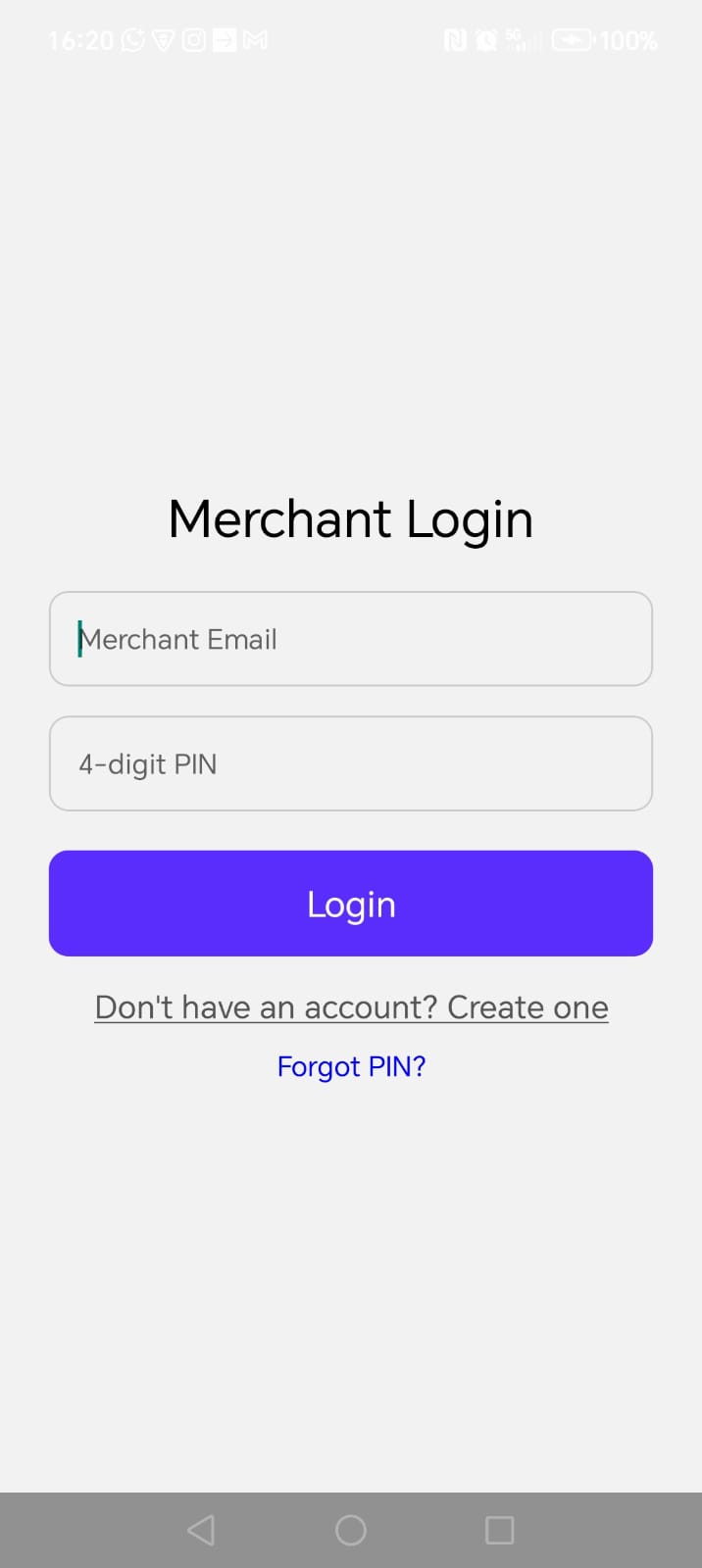
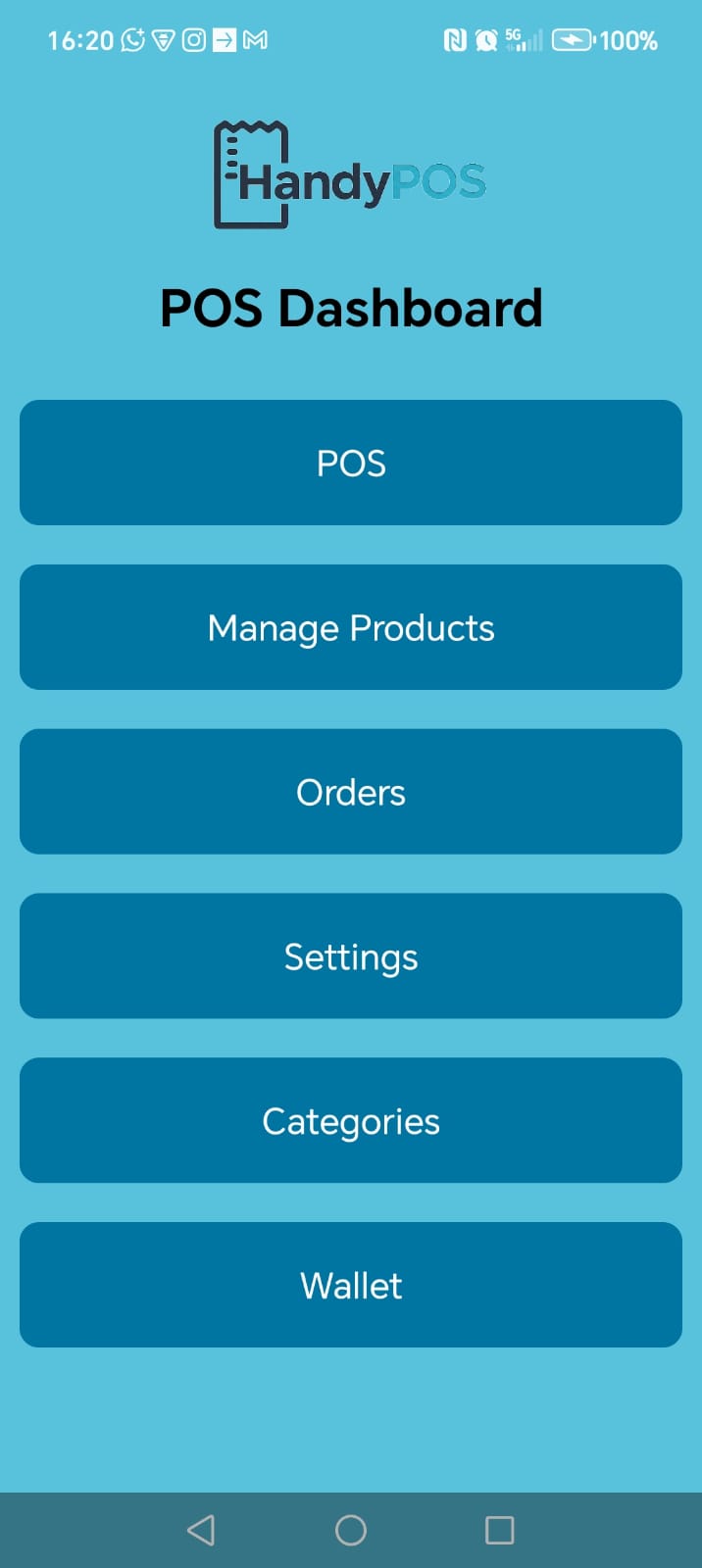
Sign up using your email address and create a secure PIN. Once logged in, you’ll land on the Home screen — your central hub with quick access to sales, products, orders, settings, and reports.
To receive card payments, you’ll need to complete a one-time onboarding process. Go to Settings and tap Complete Onboarding.
HandyPOS uses Stripe’s secure onboarding flow to safely connect your business and bank account. Stripe will guide you through entering your business details so card payments can be deposited directly into your merchant bank account.
Once onboarding is complete, return to Settings and enter your business address to register your payment location.
After your location is registered, your app is fully enabled and ready to accept in-person card payments.
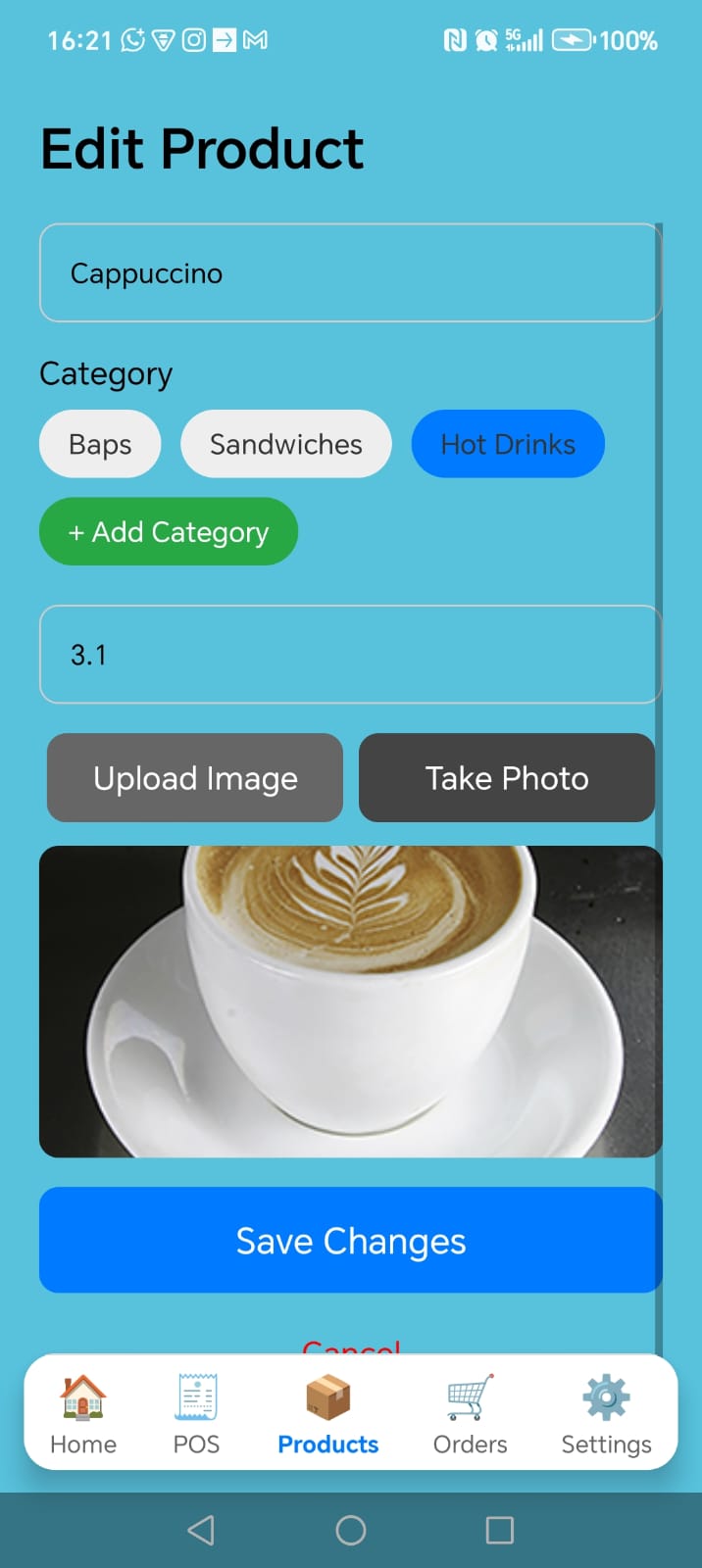
Before selling, add your products. If your menu uses categories (for example: Breakfast, Baps, Sandwiches, Drinks), create categories first from the Home screen or directly from the Add Product page.
Go to Manage Products and add items by entering:
Your menu updates instantly and is ready for checkout.
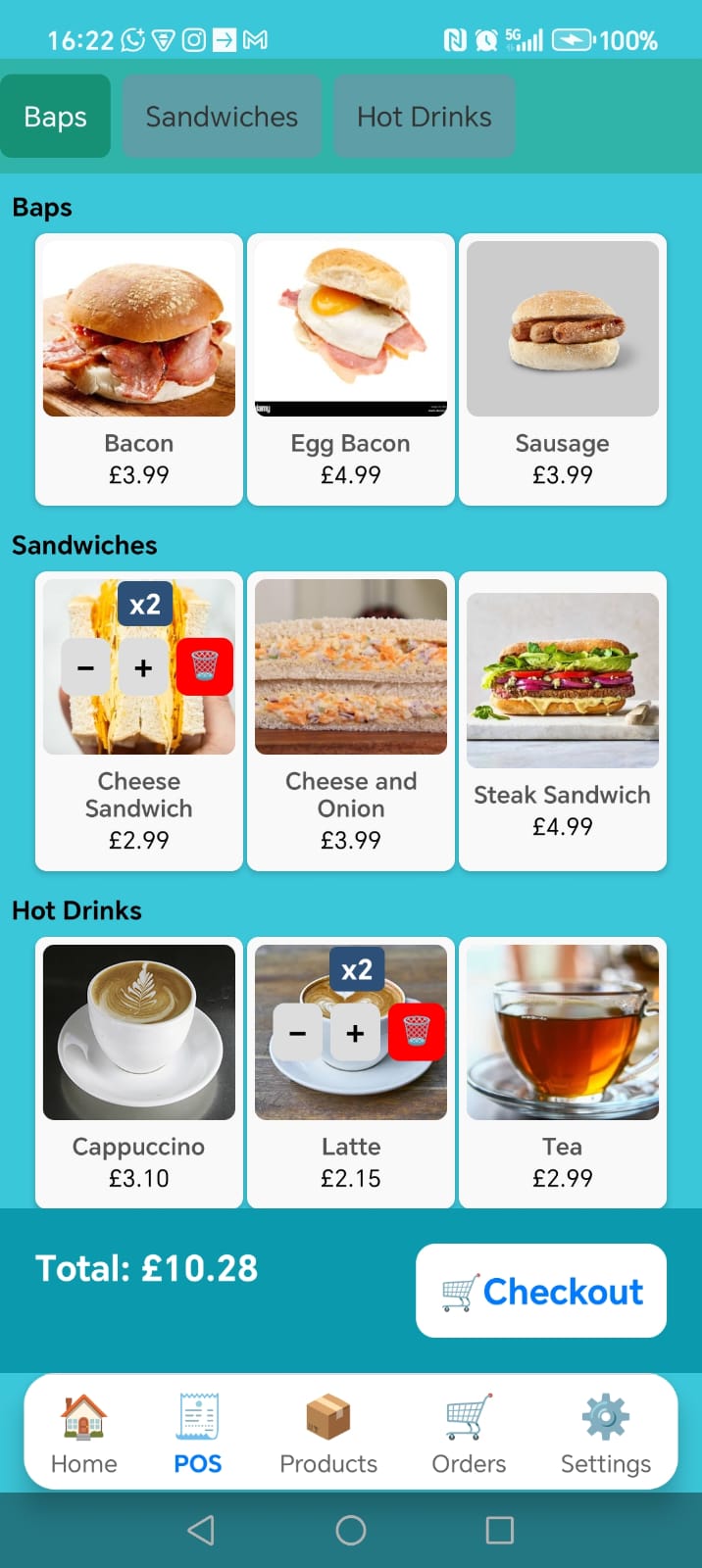
Your POS screen is now live. Add products to the order, adjust quantities, and review the total. When ready, tap Checkout.
On the payment screen, choose either Cash or Pay by Card.
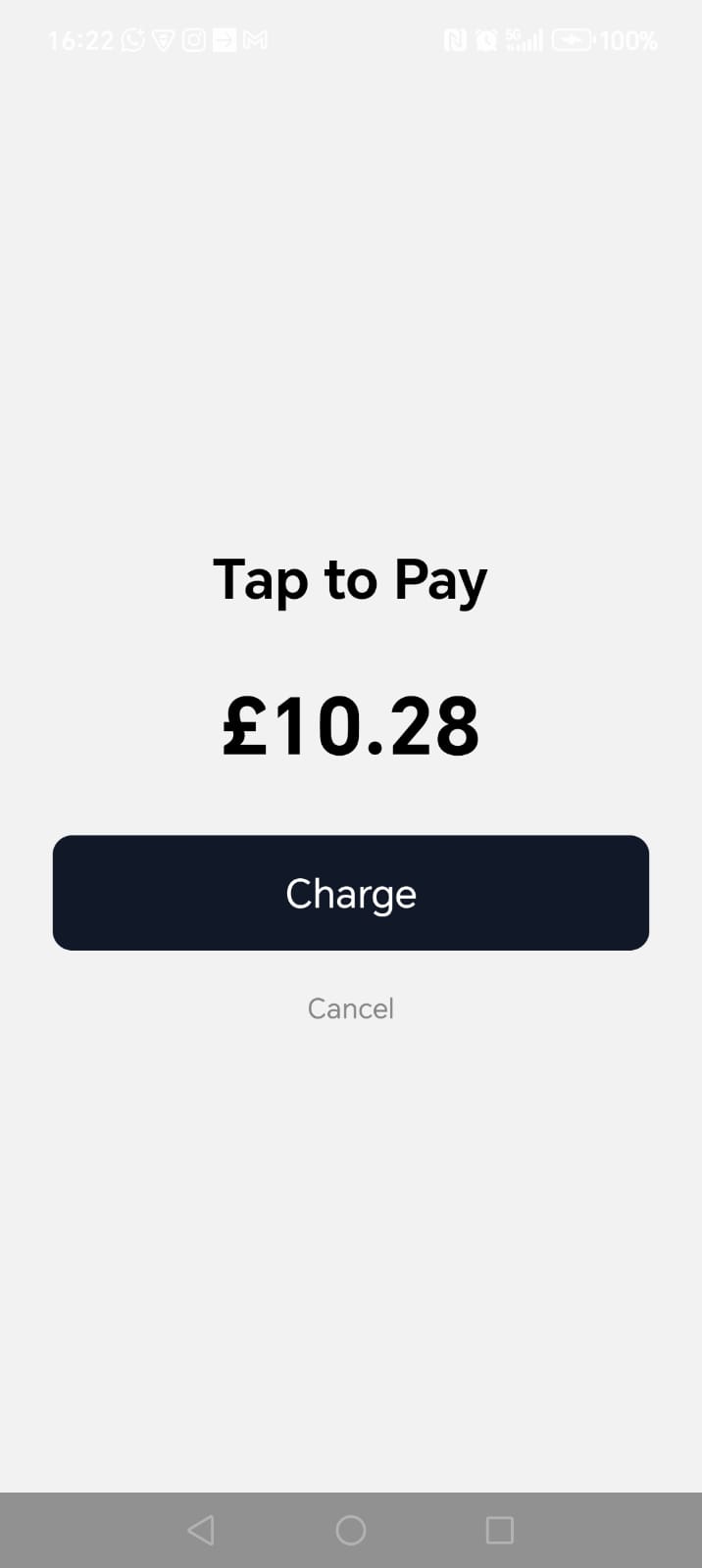
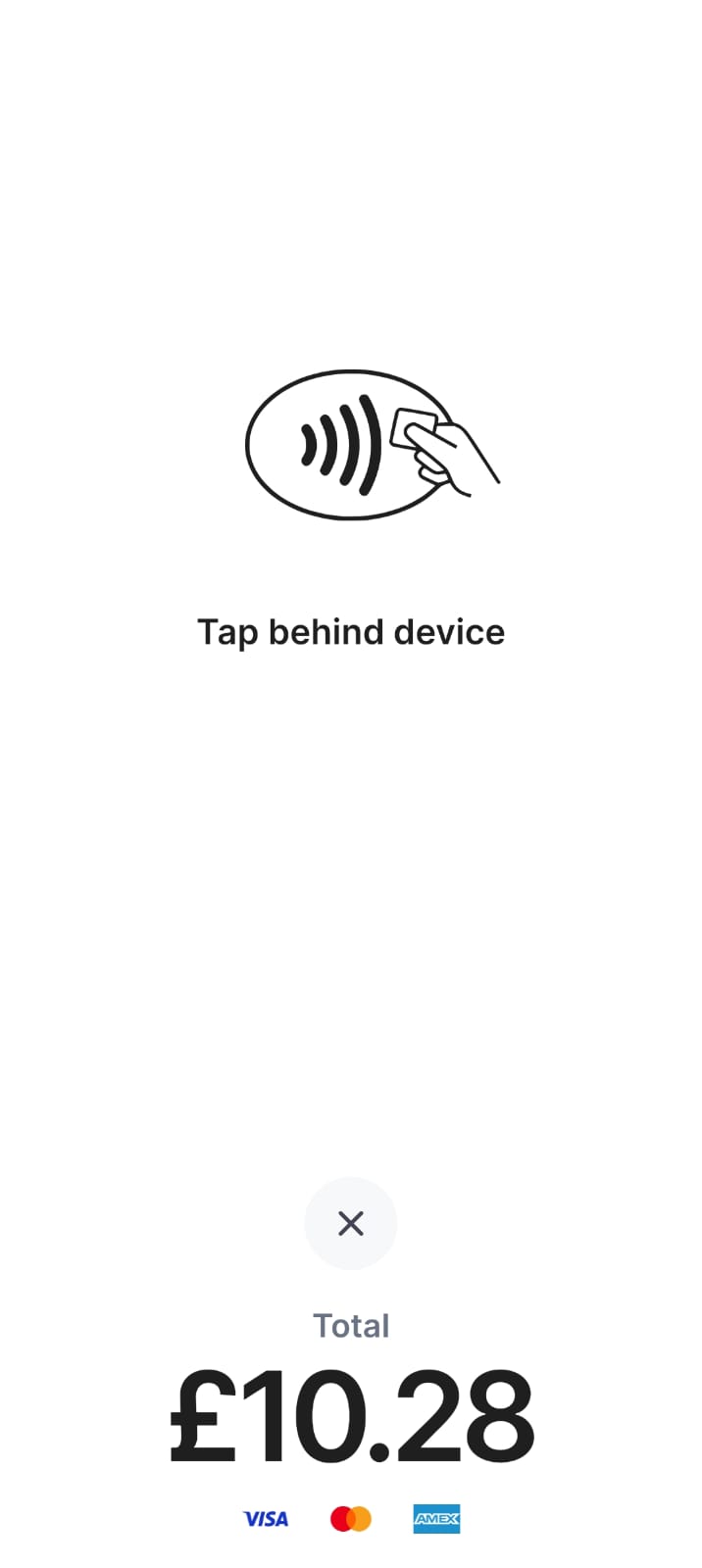
For card payments, HandyPOS will display the amount and a Charge button. Tap it to initialise payment.
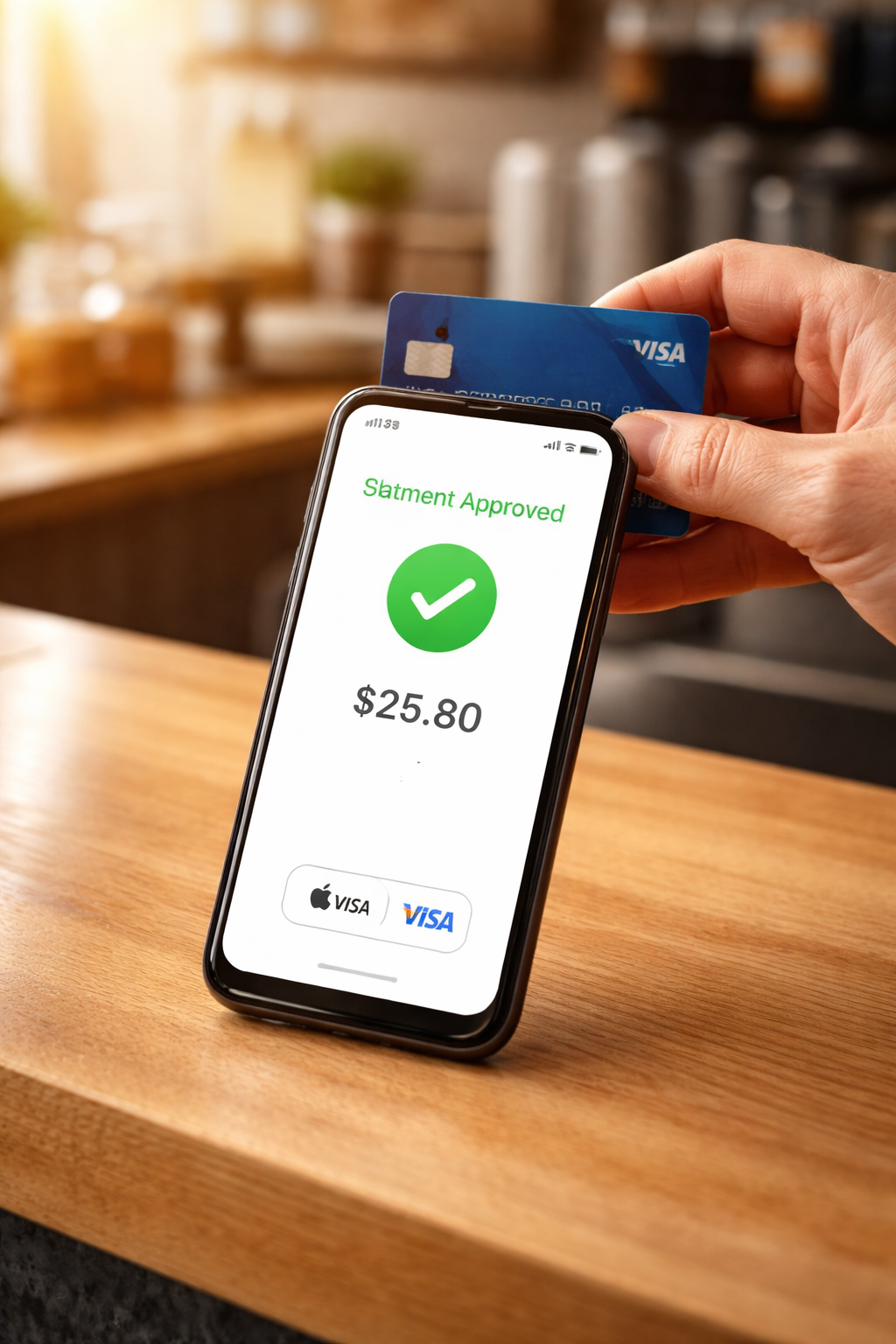
When prompted, hold your phone near the customer’s card — or the customer can hold their card behind the device. Payments are completed securely using Tap-to-Pay or on-device PIN entry.
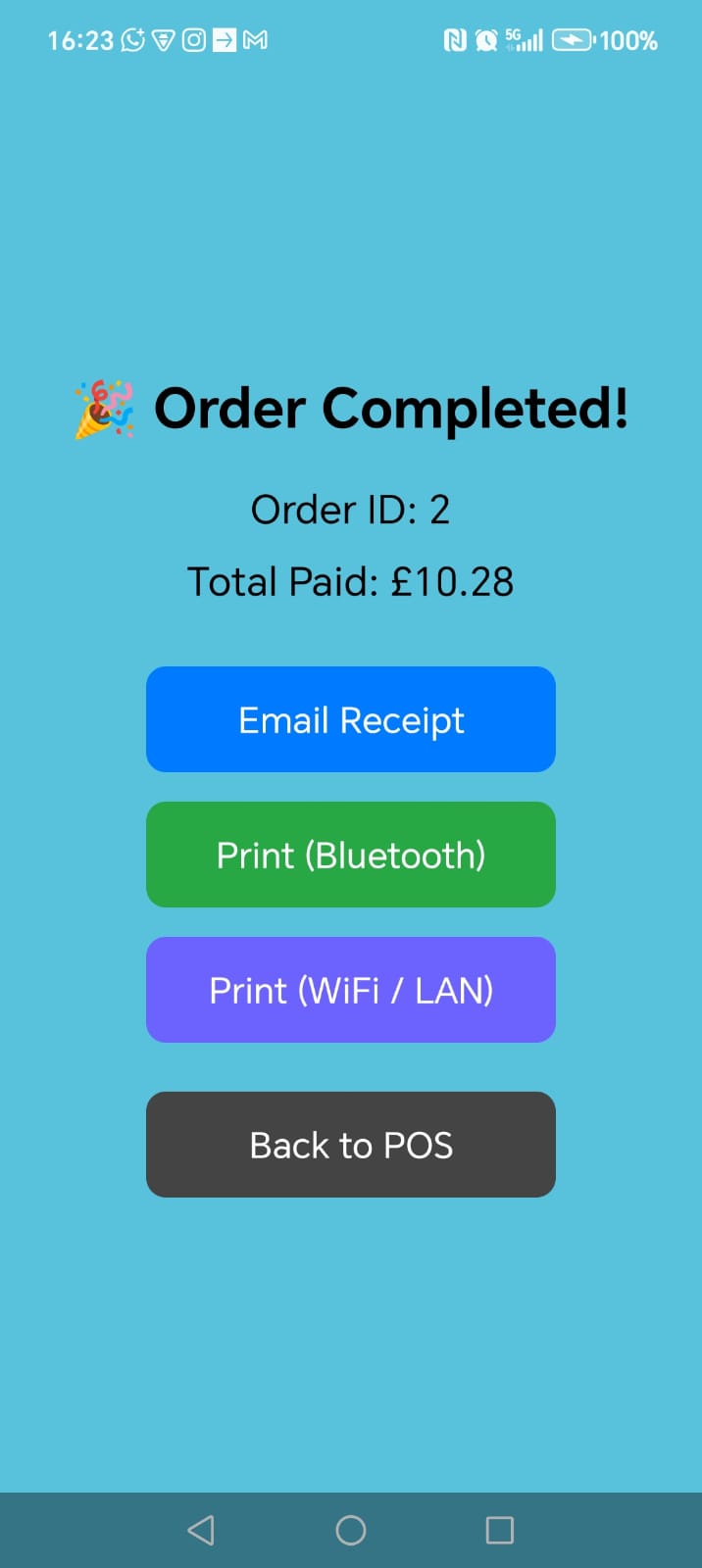
After payment, you can print a receipt using a compatible printer or email the receipt directly to the customer.
Visit the Orders screen to view all transactions. You can filter orders, reprint receipts, issue refunds, and keep a full record of sales.
The Wallet screen shows your card payment totals, available balance, and transaction history.
You can withdraw funds using instant payouts, track settlements, and monitor your payment performance — all in one place.
Everything you need to run your business smoothly.
Browse products, manage sales, view transactions, and run your business efficiently.
Accept secure contactless card and wallet payments using Stripe Tap to Pay on compatible devices.
Supports Bluetooth & Wi-Fi receipt printers so you can hand customers printed receipts instantly.
Designed for simplicity, reliability, and security.
Smooth and simple checkout experience.
Stripe handles encryption and PCI compliance.
Use your Android device to receive payments.
Funds are paid directly to your Stripe account.
Install the app and begin selling in minutes.
Get HandyPOS on Google Play